

Calibre is a software that allows you to manage all of your ebooks together under one umbrella. With Calibre, you don’t have to worry about using different apps to read books in different formats. You also won’t have to worry about scouring your file explorer trying to find books since Calibre organizes everything neatly. It’s free, open source, and accessible on computers and mobile devices. Learn how you can manage your ebook library with Calibre in this tutorial.
Calibre facilitates the management of your ebooks effortlessly. This is possible due to the steps we detail below.
[mte_toc]Adding Books to Your Library
Calibre provides several options for adding new books to your library.
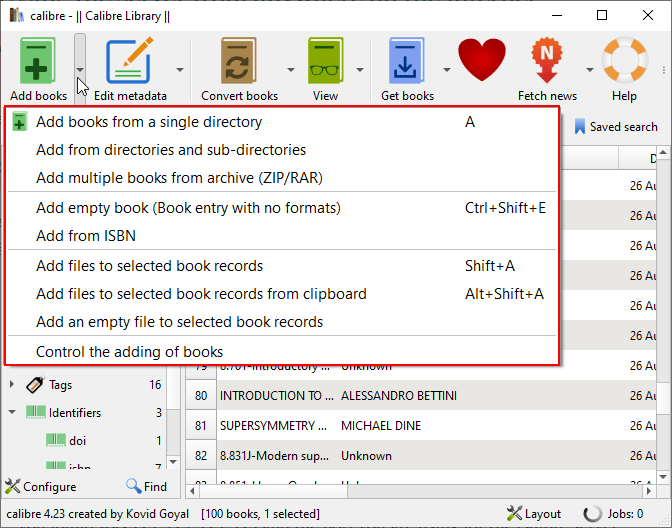
- Add books from a single directory: this option lets you choose to add books from a specified directory.
- Add books from directories and sub-directories: this lets you select a directory as an ebooks source. This option essentially scans a directory and all of its sub-directories for ebooks and adds them to your library.
- Add multiple books from archive (ZIP/RAR): with this option you can add ebooks that are stored within ZIP or RAR archives.
- Add empty book (Book Entry with no formats): this option allows you to create a blank book record and is useful if you don’t have a book in your collection. You can fill out the information relating to it to have it as a reference.
- Add from ISBN: this option lets you add a book from its ISBN number.
- Add files to selected book records: this option allows you to add or update the files associated with an existing book record.
- Add an empty file to selected book records: this lets you add an empty file to a selected record.
After selecting the option that suits you best, simply select the books you need for them to be available in your library. You can also just drag and drop books into your library.
Removing books is as simple as selecting the book(s) you want to remove and selecting the “Remove books” option.
Sidebar Interface
You’ll find a few filters in Calibre’s sidebar that allow you to quickly sort through your books when you’re looking for a particular book or category of book.
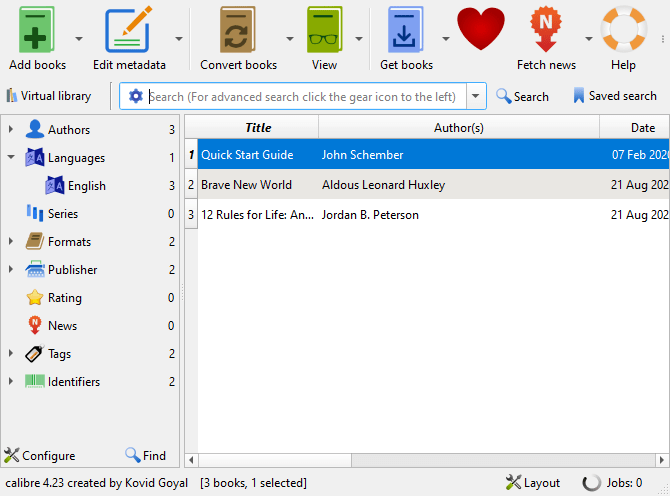
The filters included by default are:
- Authors
- Languages
- Series
- Formats
- Publisher
- Rating
- News
- Tags
- Identifiers
Search Bar
If you know some identifying information about a book you’re trying to find in your library, you can simply enter this into the search bar.
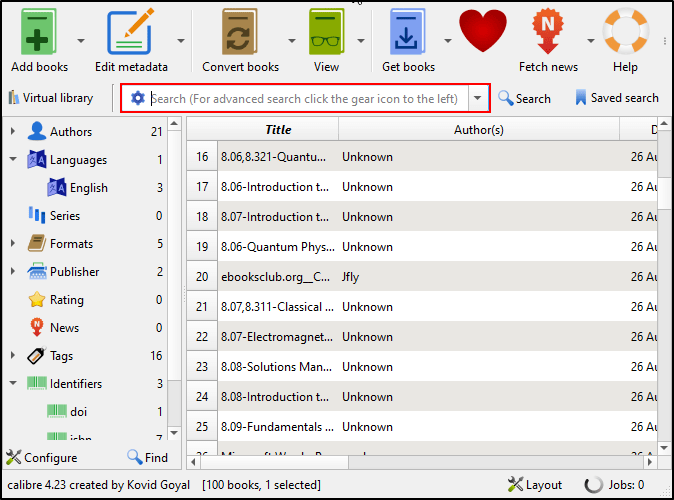
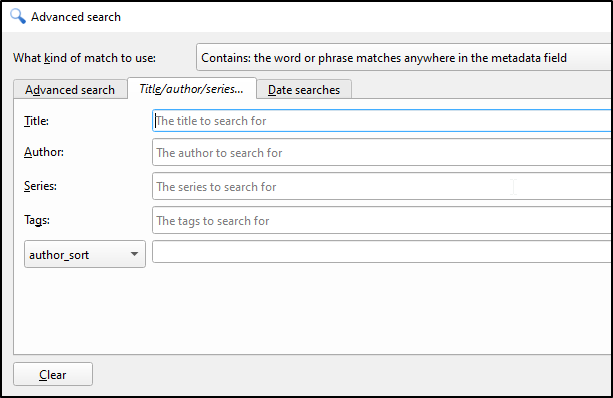
There is also the option of carrying out an advanced search. Do this by clicking on the gear icon in the search bar. Carry out an advance search based on particular word combinations, tags, titles, authors, series, and dates.
Editing Metadata
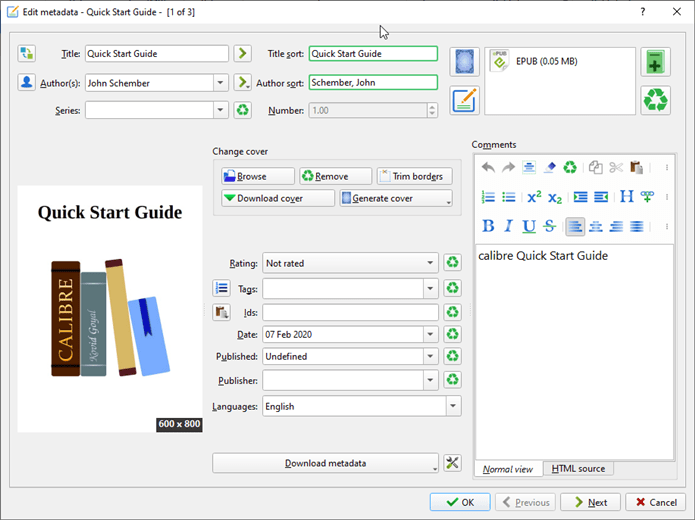
Calibre usually gets this right, but sometimes the metadata isn’t quite right when a book is imported. Easily edit this by selecting the “Edit metadata” option. Edit information such as the date a book was published or add comments. The more information that you have entered about your books, the easier it will be to find and manage them.
Converting to Various Formats
Calibre supports several different formats. The list of supported formats are: AZW, AZW3, AZW4, CBZ, CBR, CBC, CHM, DJVU, DOCX, EPUB, FB2, FBZ, HTML, HTMLZ, LIT, LRF, MOBI, ODT, PDF, PRC, PDB, PML, RB, RTF, SNB, TCR, TXT, and TXTZ.
In addition to being able to manage these files, Calibre can convert them to the following formats: AZW3, EPUB, DOCX, FB2, HTMLZ, OEB, LIT, LRF, MOBI, PDB, PMLZ, RB, PDF, RTF, SNB, TCR, TXT, TXTZ, and ZIP. This makes it easy to distribute your books across a wide range of devices.
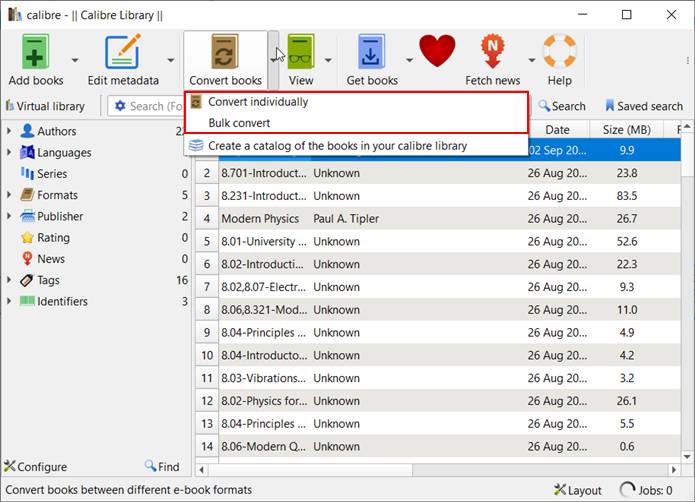
To convert books, simply select the “Convert books” option and choose either the “Convert individually” or “Bulk convert” option.
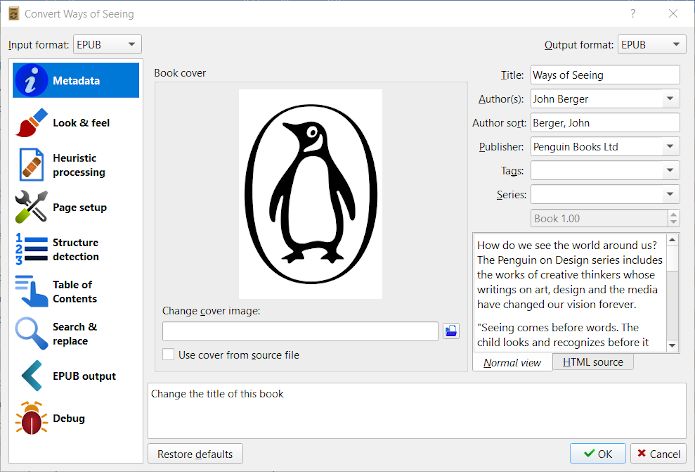
When choosing your conversion options, you can choose the output format and change the cover image of a book among other things. In the sidebar, you’ll be able to change cosmetic things such as the appearance of the text in the book.
Transferring Files to Device
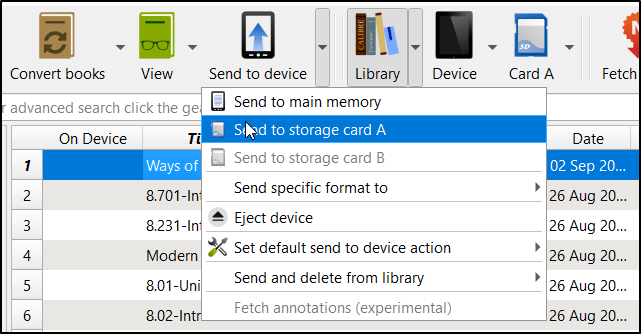
If you attach a device such as an ebook reader, a phone, or a tablet to your computer running Calibre, a Device button will appear that lets you send books to your device. Since you can convert your books to so many different formats, you won’t have any issues sending over books to a wide range of devices in a suitable format.
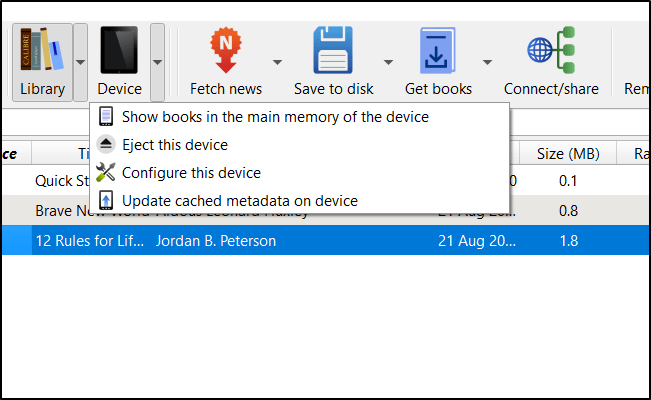
If you press the Device button, you’ll be able to view all of the books located on the device you have attached to your computer. In order to send books, go to your library, make a selection, and then hit the “Send to device” button. Choose the device you want to send the book(s) to transfer them over.
Sharing Books and Backing Up Your Library
This management software comes with powerful sharing and backup features. It’s one thing to have a nice library collection, but the ability to make it accessible is another story. You can set up a content server quickly and easily that lets you access your books from any device with an Internet connection. To start the connection, simply select “Start Content Server” under the “Connect/Share” button.
You can then access your library from other devices connected to your home network. To do this, you’ll need to enter the IP address of the computer you’re running Calibre on, along with the port number assigned to Calibre. This information is displayed next to the “Start/Stop Content Server” button. For example, if your IP address is 127.0.0.1 and your port number “8080,” then you can access the content server by typing
http://127.0.0.1:8080
into a web browser on a device connected to your home network. If you’re accessing the content server from a computer outside of your home network, you’ll have to go into your router settings and forward the port that you assigned to Calibre.
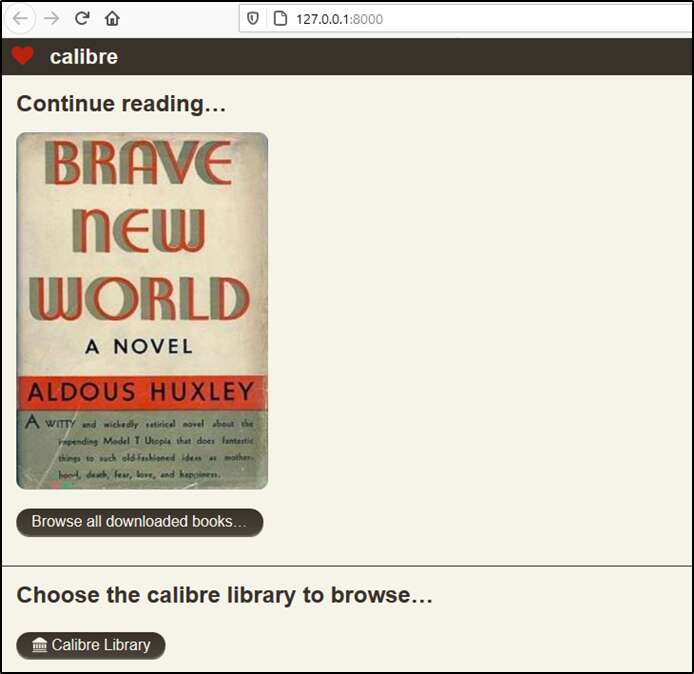
You can also share books via email with Calibre.
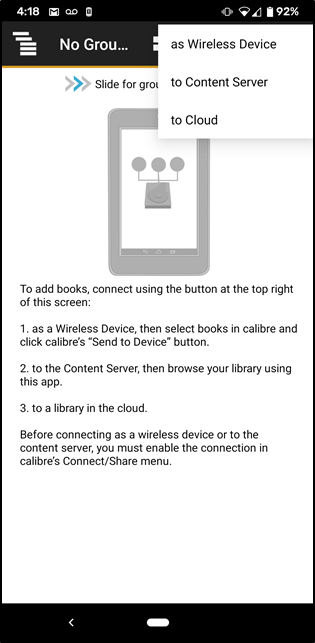
It allows you to access your library via the content server or the “Start wireless device connection” option in Calibre. You also have the option of connecting to a cloud service.
To back up/restore your libre, click on the drop-down arrow attached to the Calibre Library and select the “Export/Import All Calibre Data” button.
Editing Books
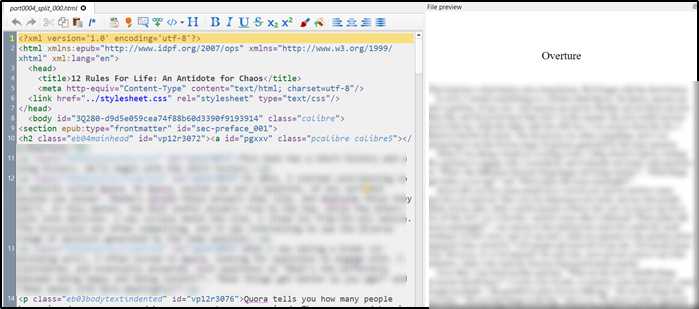
Calibre also gives users the ability to edit ebooks. Specifically, you will be able to work with EPUB and AZW3 files. This could be useful for adding notes to yourself in books.
Conclusion
Avid readers need a powerful tool on their computers to manage their eBooks. With features like the ability to convert to and from multiple formats and the ability to add custom filters, Calibre fits the bill perfectly. You are also not limited to just using it on a computer, thanks to the content server option and the companion app. Give Calibre a try if you want a powerful, simple-to-use, and free ebook management application.