

If you’re someone who takes pride in file organisation, you might be quite annoyed by how Chrome and Firefox handles downloads. You have a folder for videos, GIFs, photos, important documents, everything you can imagine; when it comes to downloading files, however, you either have to save it to the Downloads folder or navigate through the “Save As” dialogue every time. Wouldn’t it be better if you could quickly and easily select a folder to download to instead of having to manually navigate every time? Thankfully, this is possible!
Using “Save In …”
This is achieved by using an extension called “Save In …” This allows you to set up folders which can then be selected as download targets when you want to grab something This makes it a lot easier to sort your downloads as you save them.
The main problem is that you can’t save files outside of the folder you’ve designated as your default download folder. However, you can still designate specific folders within your download folder itself and save your files to each one as you go. “Save In …” is available in both Chrome and Firefox, so don’t worry about which browser you use!
In Chrome
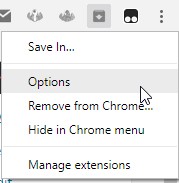
Save In can be downloaded from the Chrome Web Store for free. Once installed, it will create an icon on your extensions bar. Click it and click “Options” to customize it.
In Firefox
Meanwhile, Firefox users can grab it from the Firefox Add-ons site. Once installed, you can access the options by clicking on the bars at the top-right and selecting “Add-ons.”
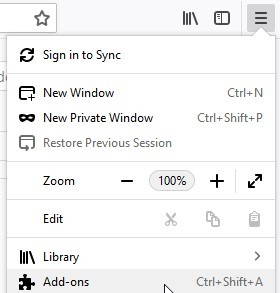
Select “Extensions” and then “Options” beside Save In.

Basic Paths
At its basic level, Save In can give you different directories you can save to when you right-click an item. If this is enough for you, then setting up Save In is very easy. Simply scroll down to the box that displays the directories, and type in the ones you want. Don’t worry if you enter a name for a folder that hasn’t been made yet; Save In will create it for you when you save in it for the first time.
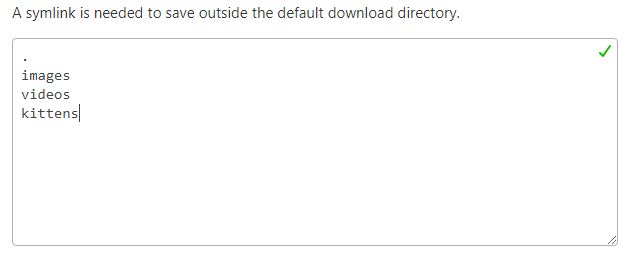
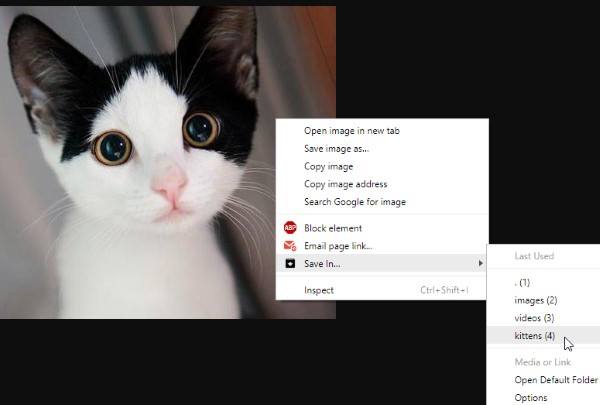
Now when you right-click on something in Chrome, Save In will display all the directories you gave it earlier. Simply click the one you want to save it to, and Save In handles the rest.
Advanced Paths
If you scroll down, you’ll find a box called “Dynamic Downloads” where you can input more complicated rules and commands. There is a lot you can do with Save In when it comes to how files are downloaded. Thankfully, the extension itself has a good tutorial that talks you through the syntax of how to set up these rules to get you started.
Here are a few things you can do as an example of how powerful Save In can be.
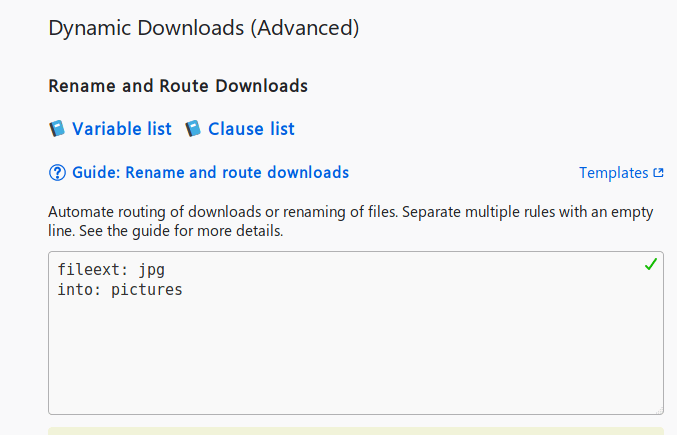
1. You can tell Save In to automatically save files in specific folders depending on its extension. For example, if you want to put all .jpg images in the pictures folder, you can do so with the following:
fileext: jpg
into: pictures
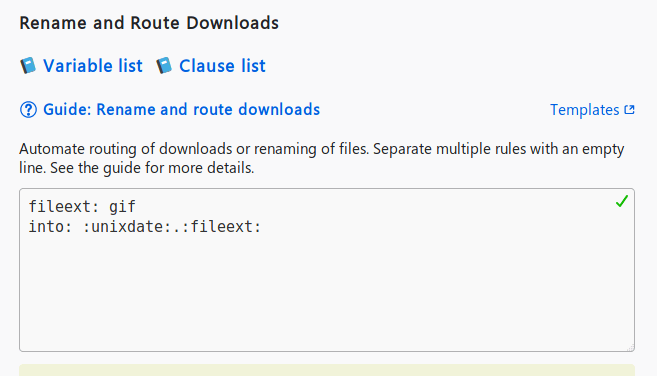
2. You can set a rule so that when a specific extension is saved, the filename is changed to the current date:
fileext: gif
into: :unixdate:.:fileext:
3. You can also make it so that when you’re saving a webpage, it automatically saves as .html:
context: page
into: :filename:.html
As we’ve said above, there’s a lot you can do with Save In, so be sure to bury yourself in the documentation for a better idea on what you can do.
Saving Time
If you want to keep your downloads folder free from clutter, Save In can help you decide where each download goes for a cleaner file structure. Now you know how to install it for Chrome and Firefox and how to use it once it’s installed.
Does this make your file organisation easier? Let us know below!