

Alongside animation and interactivity, Javascript powers a range of intrusive advertisements, obnoxious pop-ups and dangerous attack vectors like XSS. By selectively blocking certain sources of Javascript, you can get the content you want while blocking the content you don’t. Use these script-blocking extensions below to block intrusive advertisements and protect your privacy.
Block Javascript with ScriptSafe on Chrome
ScriptSafe blocks scripts on Chrome and Chromium-based browsers like Vivaldi. Like any decent script blocker, ScriptSafe blocks nearly all scripts by default. Then, you can allow certain URLs and domains to load scripts. This does break sites the first time you visit them. But once you permit the necessary scripts, ScriptSafe starts to fade into the background. There are options to change this behavior to allow scripts by default, if it annoys you.
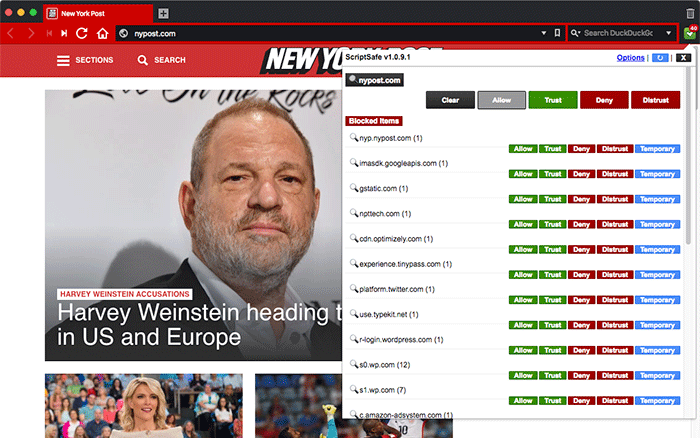
Click on the ScriptSafe icon to reveal the list of blocked content. The interface for toggling scripts on and off is organized by domain.
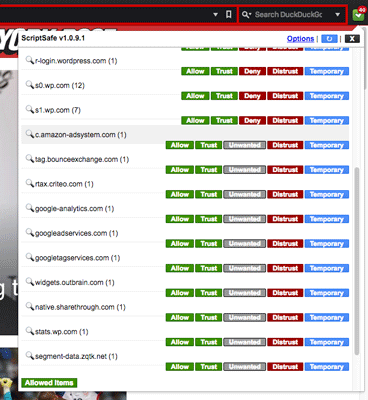
You can use “Allow” to permit a specific URL to load content. Click “Trust” to allow any content from that domain to load. This is the difference between “apis.google.com” and “*.google.com.” You can also “Deny” or “Distrust” domains. This is the opposite version of “Allow” and “Trust,” respectively.

Certain content providers will be automatically marked as “unwanted,” blocking content from rendering without blocking the host domain. You can also temporarily permit URLs. This resets when you restart Chrome.
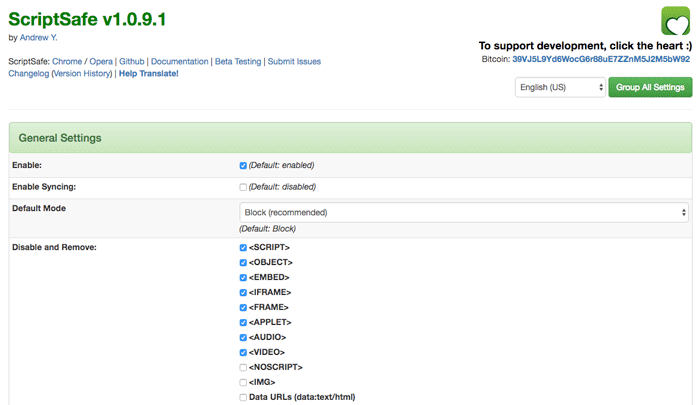
Users also gain access to a huge range of power user settings, letting you tweak options as necessary. You’ll find tools to stop browser fingerprinting, block XSS and foil clickjacking.
Blocking Javascript with NoScript on Firefox
ScriptSafe is only available on Chrome and Chromium browsers. Firefox users can use NoScript instead. The extension is well reviewed, with a long track record of updates and development. It works like ScriptSafe, blocking scripts automatically until you explicitly permit the host.
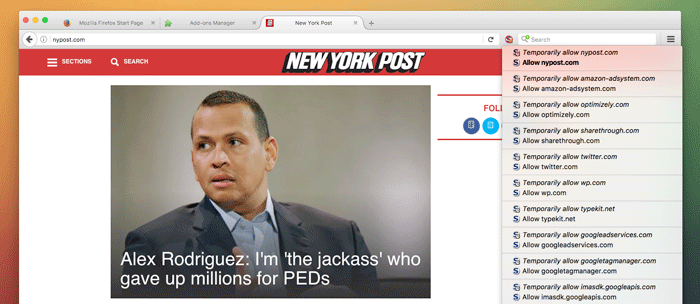
To see the blocked scripts, click on or hover over the NoScript icon in the toolbar. You can also click the “Options …” button on the notification ribbon at the bottom of the window. Do this on a site like nypost.com, and you’ll see an alarming number of scripts blocked. More than eighty were blocked in this example.
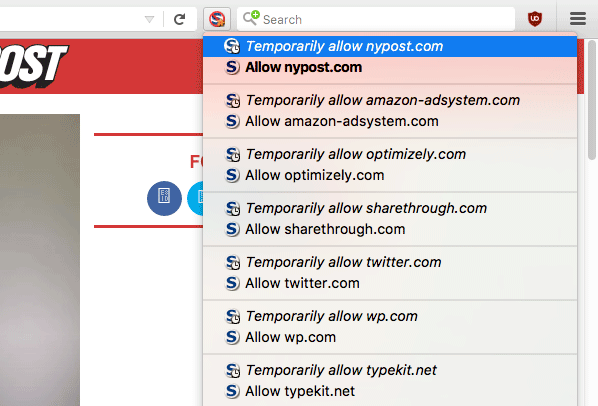
Like ScriptSafe, NoScript blocks scripts by domain. To enable a script from a specific domain, click “Allow” or “Temporarily allow” next to its name. “Allow” permits scripts from that domain to load forever. “Temporarily allow” permits scripts to load from that domain until the end of the session.
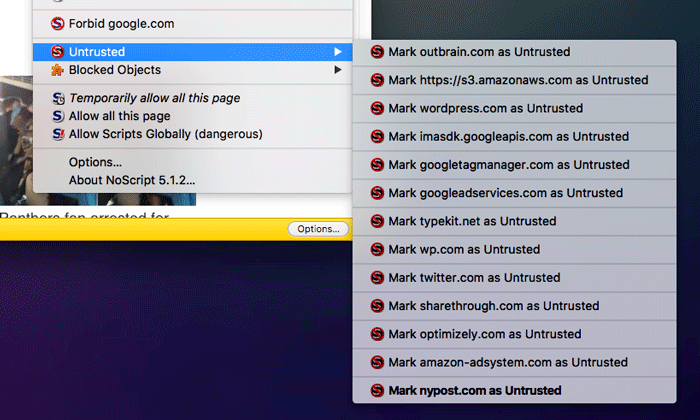
NoScript also has an “Untrusted” option. Marking a domain as “untrusted” removes them from the dropdown list completely. This can help declutter a busy dropdown. In the future you won’t even have the option to allow scripts from this domain. Be judicious with what you distrust. To mark a domain as untrusted, mouse over the “Untrusted” dropdown and click on the domain’s name.
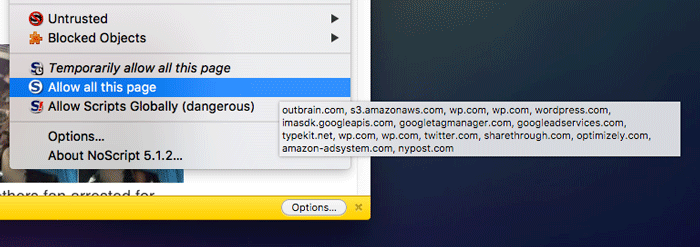
We can also permanently or temporarily allow all scripts on a page. Hovering over “Allow all on this page” provides a tooltip with the domains of the scripts you’re about to allow. This only works for scripts that NoScript “saw” when it loaded the page. Some scripts launch new scripts, so you may need to do this several times to get a website to load all of its scripts.
You can disable NoScript completely by clicking “Allow scripts globally” below this option.
Conclusion
Script-blocking extensions like NoScript and ScriptSafe are a must-have for serious browser security. Either makes a great companion to must-have extensions like uBlock Origin and HTTPS Everywhere.