


Does your Gmail inbox get an insane amount of emails every day? If it does, the idea of trying to find an email can seem like a mission impossible.
Skimming your emails page by page is not only time-consuming but also tiring. Luckily, we have tips you can try to organize and find your emails in no time.
Have Emails Skip Inbox
If there are emails that you don’t need to see and that can be archived, then this tip will come in handy. You can automatically file emails by going to “Settings -> Create a new filter.” Fill out the needed info to have the emails archived.
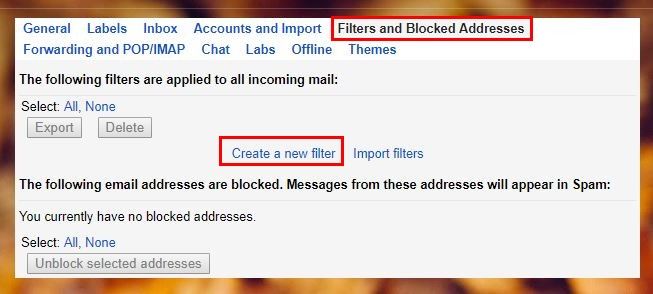
Once you’ve filled in the info, click on “Create a filter with this search” and decide what you want the filter to do. Check the box that says “Skip the Inbox (Archive it).” There’s also an option to mark those emails as read if there is no need to look at them.
Also read: 6 Best Tips to Protect Your Gmail Account Security
See All Emails from One Sender
You remember that it was Mark that sent you that email but you have no idea when he sent it. To find emails from a particular sender, find the latest email that contact sent.
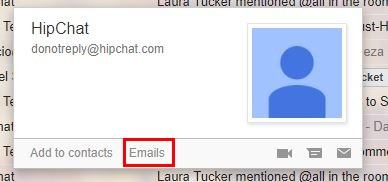
A new window will appear, and when it does, click on the Emails option at the bottom. You’ll be taken to a part of your inbox where you will only see emails from this person.
Organize Your Email by Subject
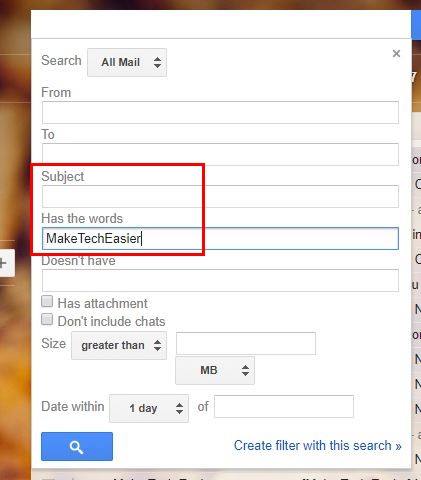
You have that vital work presentation coming up, and you need to find all presentation-related emails. To see them, click on the dropdown menu in Google’s search bar. Fill in the “Subject” and “Has the words” areas with the keywords the emails need to have.
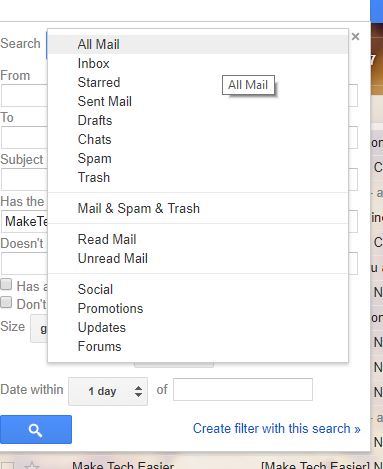
If you want to limit the search to only emails you’ve starred or chats, just click on the dropdown menu of this new window and choose the option you need.
Send Vacation or Out-of-the-Office Replies
Letting everyone know you’re out of the office with an auto-reply is also an easy task. Go to Settings and scroll all the way down until you see the “Vacation Responder” section. Fill in the Message, range, and subject.
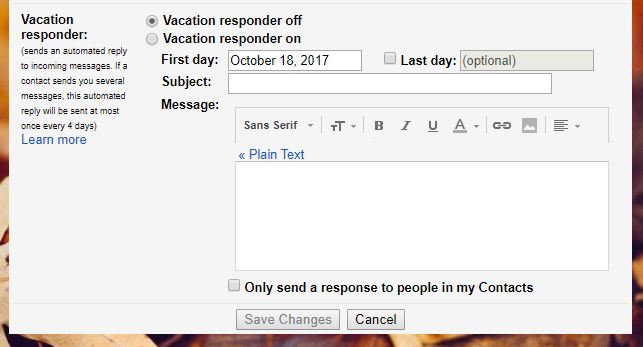
If you only want to have your contacts see your vacation reply, make sure to check that box, too. Once you’re done, click on Save Changes, and your message will be sent automatically.
Erase Emails in Bulk Before or After a Certain Date
To erase emails before a specific date, you’ll need to type the phrase before:2017/5/18 in the Search box. You can obviously change that date for the one you want.
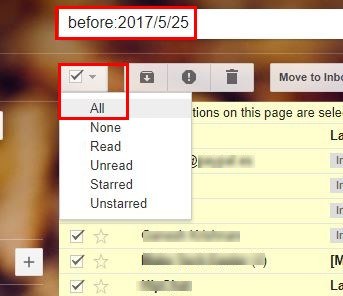
After clicking on the search icon, you’ll see a list of all the emails sent/received before that date. Click on the selection dropdown menu and choose all. Click on the Trash icon, and all those emails will be gone.
To erase Emails after a specific date, you only need to change the word “before” to “after” in the search phrase. Make sure you also enter the correct date as well, but also make sure you skim through them to make sure you’re not erasing anything significant.
Also read: How to Create Multiple Signatures in Gmail
How to Add Labels (Folders) to Your Emails
Labels are a great way to organize your emails. Think of them as folders that will keep all your presentation emails together as well as all your weekend party emails.
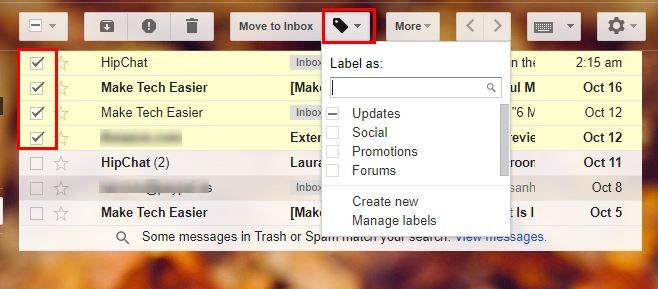
First, click on the email you want to organize and click on the Tag icon at the top. You can also choose various emails and give them the same label. If you don’t see the label you need, click on the “Create new” option.
Advanced Gmail Search Operators
If the Email you’re looking for doesn’t have a keyword that will help you find it, the following are some search operators you can use:
- If you want to exclude your chats from your search, type
-label:chats.
- To search for specific labels, you’ll need to type
+label:Label name. - To look for emails between a specific timeframe, type
before:yyyy/mm/ddandafter:yyyy/mm/dd. - To look for attachments, type
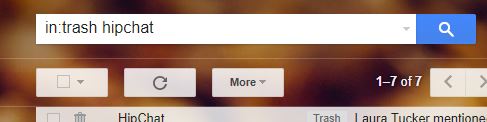
filename:PDFif the attachment you’re looking for is a PDF file. - If the email you need is in the trash or spam for some reason, type in
trash (keyword here)orin:spam (keyword here).
Conclusion
With the above tips, you will be able to better organize your emails in Gmail. Are we missing your favorite tip? Let us know what it is in the comments below.