


When things are organized, they are much easier to find which results in you saving some valuable time. Organizing also saves a lot of the stress that comes with not being able to see what you need when you are in a hurry.
These days many people have thousands of files on their computer or in a digital storage program. Imagine trying to find one file among thousands. Now imagine if those files are not organized. It’s a cause for major frustration. Learn how you can alphabetize your documents in Google Docs.
Also read: How to Research and Cite Articles in Google Docs
How to Alphabetize Your Files in Google Docs
This is going to seem obvious, but sometimes even these apparent things get past us. Make sure you’ve signed in to your account and the Dashboard and either open a new or already existing document.
Click on the “Add-ons” option at the top followed by the “Get add-ons” option. In the search box type in “Sorted Paragraphs” and click on the blue Free button. The add-on will ask you for permission to view and manage your documents, which is a must, naturally.
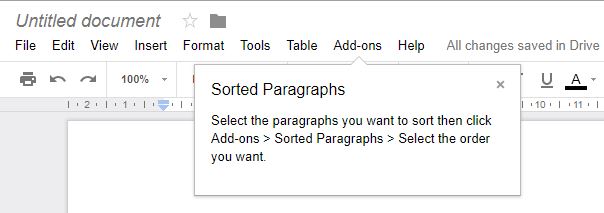
The add-on (once installed) will tell you what you need to do to alphabetize your document such as click Add-ons -> Sorted Paragraphs -> Select order you want. Don’t worry about being bombarded with options since there are only two to choose from: Sort A-Z and Sort Z-A.
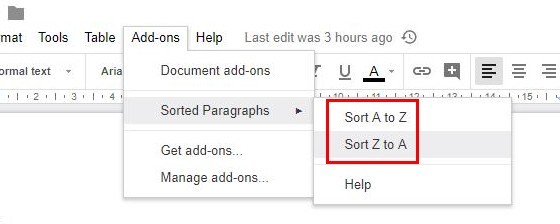
To put this add-on to work, highlight whatever text you want to put in alphabetical order. Click on the add-ons button followed by the Sorted Paragraphs options. A small pop-up window will appear with the options to either sort them in alphabetical order or reverse.
If you ever want to remove the add-on for some reason, just go to Add-ons and click on manage add-ons. Select the green Manage button, and the last option on the list will be to remove it.
How to Alphabetize Your Google Spreadsheet Documents
With Google Spreadsheets you won’t need an add-on to alphabetize your documents. It already has a built-in feature that does that for you. This is a real relief if you already have way too many add-ons already.
Highlight the column you want to have in alphabetical order and click on the “Data” option at the top. Look for the option that says “Sort Range” and a small pop-up window will appear. In that window you’ll have options to either sort your documents in alphabetical order or in reverse.
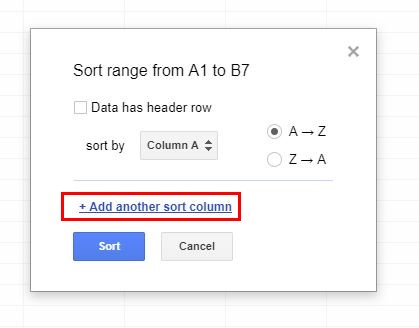
You can even alphabetize multiple columns simultaneously to save yourself some valuable time. Drag and select the columns in question and click on the Data option again followed by the “Sorted By” option.
At the top you’ll see the columns you selected; make sure you didn’t pick an extra column. Click on the “Add another sort column” option, and choose whether you want to sort that column in alphabetical order or reverse. When you think you’ve covered all the columns you want, click on the blue Sort button.
Conclusion
Keeping things organized is always the best way, but it’s something you may not end up doing until it’s absolutely necessary. If you ever need to order your file content in alphabetical order, now you know how. Do you find this option useful? Leave a comment and let us know.