

If you’re a regular visitor to a specific website (maybe Make Tech Easier?), why not add Chrome webpages to the home screen on Android? When you want to pay a visit to the site, simply head to the home page, tap the icon as if it were an app, and you’re there! While this post covers Chrome specifically, the process to add your bookmarks to the home screen on Android works on most Chromium-based browsers.
[mte_toc]Adding a Specific Website
If you have a specific website in mind that you’d like to add to the home screen, it’s simple to do. Add individual webpages to your home page, which look similar to app icons.
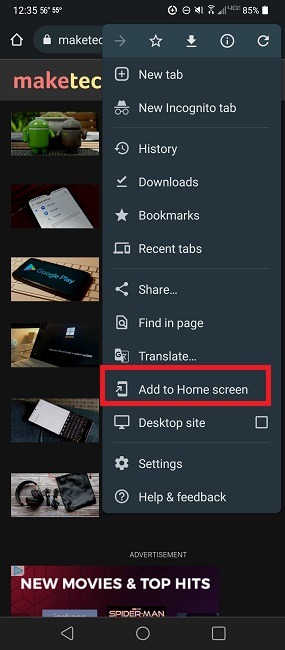
Open Chrome and navigate to the page you’d like to add to the home screen, then press the three dots in the top right of the Chrome window. Press Add to Home screen.
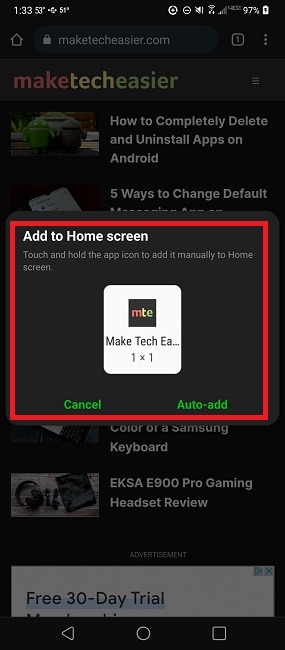
Confirm the name, changing it if you’d like, then long-press, and drag the web page icon wherever you’d like, or tap Auto-add to add it to your home screen automatically.
The website appears on the home screen like an app. Tap this any time you want to access that website.
Easily add Chrome webpages to any Android screen, not just the home screen. Move the webpage shortcut icons around just like app icons. You can even have an entire screen on your device dedicated to webpage shortcuts.
Add Progressive Web Apps (PWAs)
If you tried the method above but didn’t see Add to home screen, don’t worry. For sites that have a corresponding Play Store app, their sites are often Progressive Web Apps, versus traditional websites. All this means is that the website functions much like an app.
Installing a PWA takes up less space than a full app and works well if you don’t need the full app.
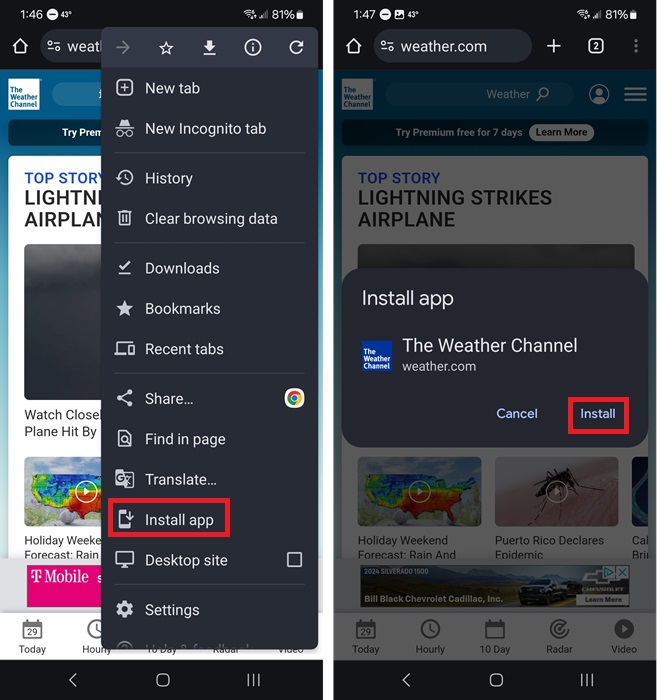
Within Chrome or a Chromium-based browser, click the three-dot menu, and select Install or Install app. Do this in place of Add to home screen. Tap Install to add the PWA to your Android home screen.
Adding Multiple Websites
While it’s useful to add Chrome webpages one by one, there may be times you would like to add multiple bookmarks in one go to your home screen on Android. You could repeat the above process for each website, but there’s a neater and more organized way to accomplish this, involving bookmarks, and placing an entire bookmark folder on the home screen instead.
Bookmark your favorite sites. Do this by navigating to each favorite site, pressing the three dots, and selecting the star icon at the top.
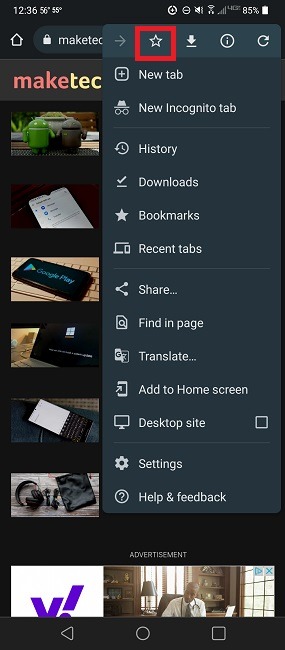
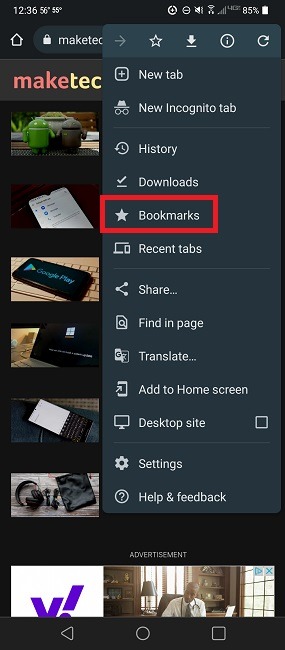
If you’d like to organize the bookmarks into a folder, access the Bookmarks menu by pressing the three dots again and selecting Bookmarks.
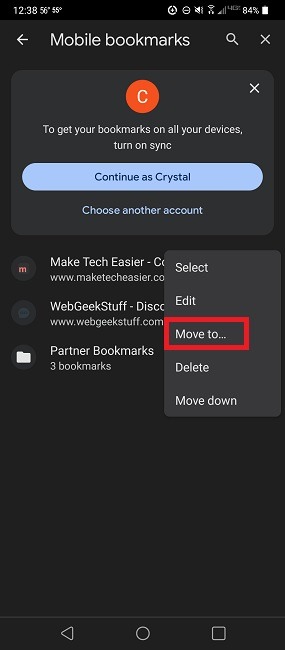
Press the three dots next to the bookmark you want to move, and select Move to.
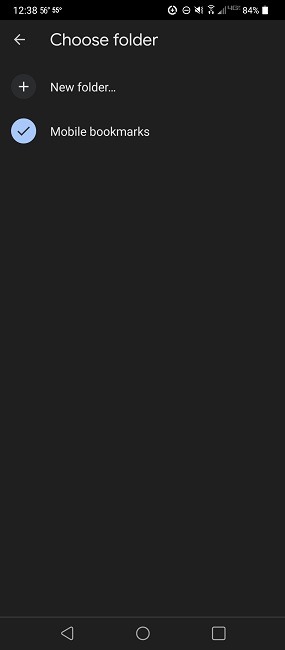
Select the folder you want to move the bookmark to. If you haven’t made a folder yet, select the New folder … option at the top.
To place this folder of favorite websites on the home screen, access the widgets page. Typically, long-press any empty area of your home screen, then tap Widgets. This may vary by device.
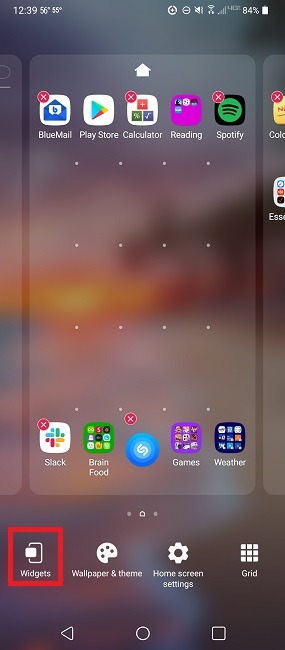
Scroll down until you see Chrome, then select Chrome bookmarks.
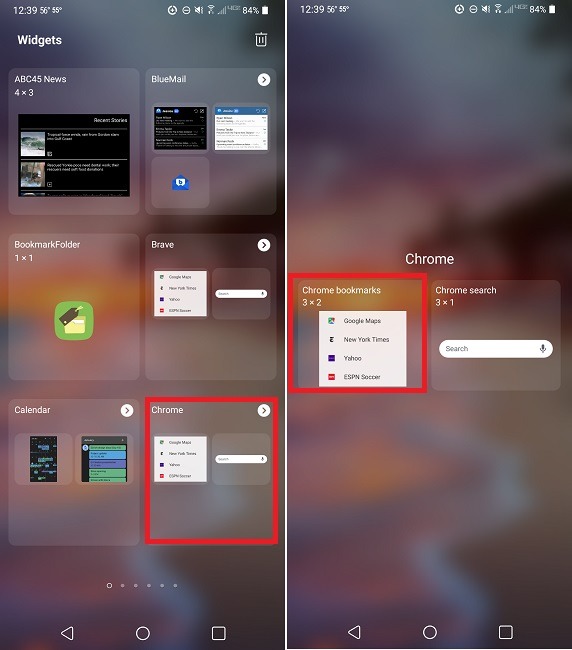
This will put a customizable bookmark widget on the Home page. While the widget claims it’s 3×2, you can tweak the size by tapping an empty space on the widget once, then grabbing a corner and shunting it around.
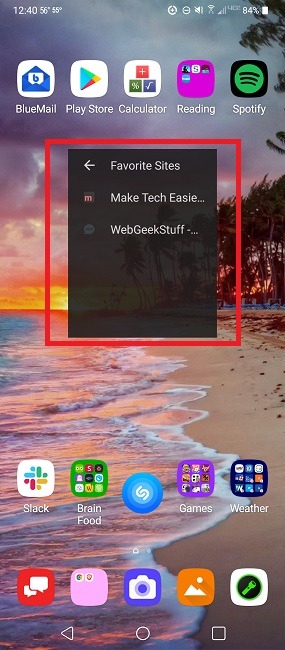
Now you have an area on your home screen dedicated to your bookmarks. If you want a larger widget, consider dedicating an entire empty screen to the bookmarks widget.
Frequently Asked Questions
Can I group web pages into a folder on the Android home screen, the same way I do with apps?
Yes. Once you have two or more web page icons on a page, drag one on top of the other to create a new folder. This works well if you want to group your favorites together but don’t want to add them as bookmarks in Chrome.
What if I'm using a different browser?
The process varies slightly based on the browser you use. However, most Chromium-based browsers use the same process as Chrome. For example, I often use Brave, which is built on Chromium. The process works the same, though the menu is at the bottom of the browser versus the top.
If your browser doesn’t support this, you can use a bookmark app to collect links, then add Chrome webpages to your home screen. Use one that supports widgets or adding shortcuts to folders/links. Bookmark Folder is a completely free Android app (a premium version is available for $2.99 to remove ads and has a few extra features) that allows you to gather links from any browser. Tap the three dots beside any folder or link to add a shortcut to your Android home screen.
If you’re trying to find a more privacy-focused browser, try one of these options.
Do I have to stick with the default icons for web page shortcuts?
You can set your own custom icons for your Android apps and shortcuts. Use this guide to learn how to customize icons to make it even easier to quickly find the web page shortcut you would like to visit.
What happens if I delete the shortcut on my home screen?
If you added an icon, you’ll need to visit the website again in Chrome and add it back to your home screen. This works the same as deleting an app.
If you deleted the bookmarks widget, go back through the process of adding the widget again.
If you’re afraid of losing your icons when switching phones or in the event your phone dies, consider logging in to Google Chrome and saving all your bookmarks. Save all the web pages you’ve added to your home screen (or other screens) into a single folder. Then, if everything gets deleted, log back in to Chrome, and re-add your shortcuts from your bookmarks folder.
Alternatively, consider using an AI-powered bookmarking tool to help you get more from your bookmarks.
Image credit: Pexels. All screenshots by Crystal Crowder.