


Regardless of the operating system you are using sometimes it will become bloated with plenty of useless files lying around. To make it worse, you have barely enough storage space left in your hard disk, even though you just upgraded it not long ago. Therefore, it is necessary to do some maintenance on your PC once in a while and clean up unnecessary files that are chunking up large storage space in your hard disk.
Here are eight ways Ubuntu user can clean up their Ubuntu.
1. Analyze your disk usage
The first thing you need to do is find out which files are consuming th bulk of the storage space in your hard disk. Launch “Disk Usage Analyzer” from your Applications list (it is located in the “Utilities” folder), and click on your hard disk to get it to analyze your disk usage pattern. You will be able to see instantly which files/folders are taking up the bulk.
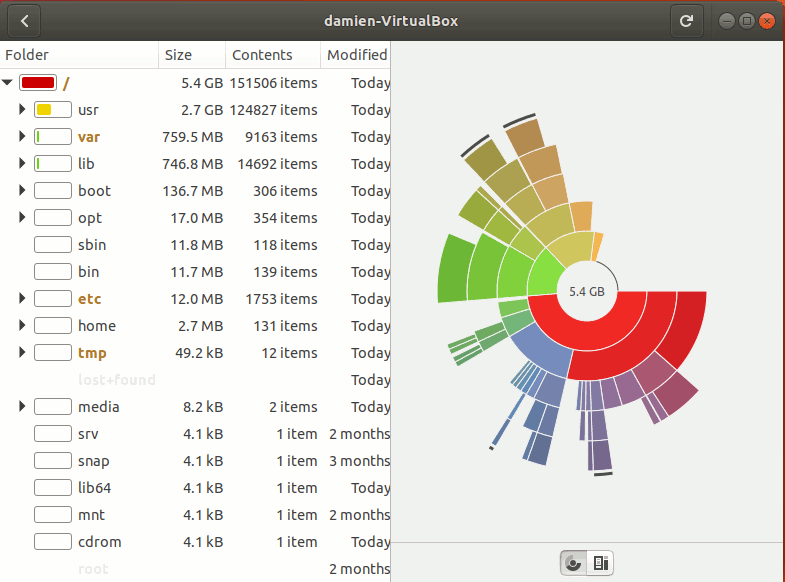
Once you have determined the files that are taking up large storage space, you can do the following:
- Decide if you have any use of the files. If not, send them to the trash (or delete them permanently).
- If you have no immediate use for the file but will need to reference to it in the future, either back up to an external hard disk, or if the file is too big, you may want to compress and split it into several small files for easier storage.
2. Clear duplicate files and broken symlinks
Over time you could have a dozen copies of the same file lying in different corners of your system. The best idea is to hunt them down and eliminate them before they take control of the hard disk.
FSlint is a utility to find and clean various forms of lint on a filesystem, especially duplicate files and broken symlinks.
1. Install FSlint with the following command (in your terminal):
sudo apt install fslint
2. Launch “FSlint Janitor” from the Applications list. Add the file path that you want to search. On the left click on the “Duplicate” tab, and click “Find” at the bottom.
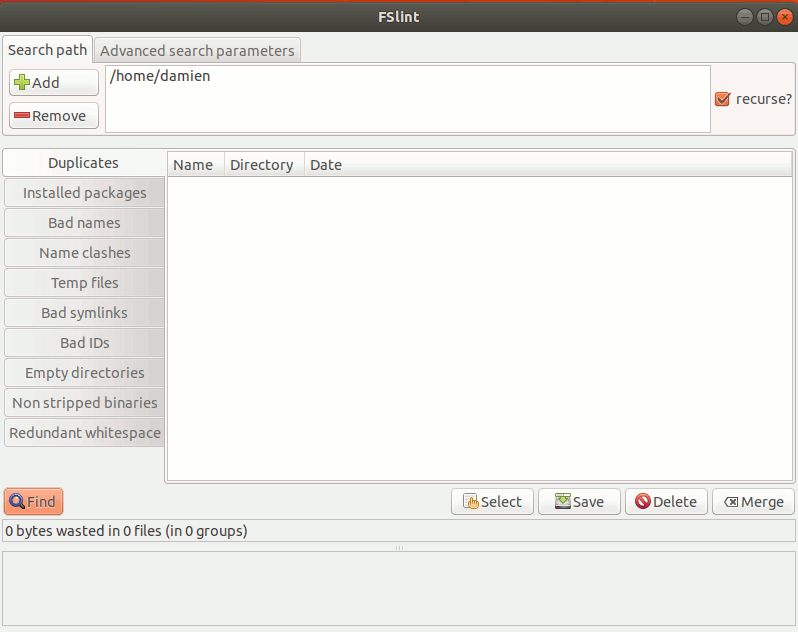
Other than finding duplicate files, FSlint can also find broken symlinks, empty directories, bad IDs and even redundant temp files, all of which you can delete to help recover your precious disk space.
3. Clean up your package installation
If you have installed and uninstalled a lot of applications, chances are your system is infected with a lot of dependent files that you have absolutely no use for. The following are some useful commands to get rid of any partial package and remove any unused dependencies:
Cleaning up of partial package:
sudo apt autoclean
Cleaning up of the apt cache:
sudo apt-get clean
Cleaning up of any unused dependencies:
sudo apt autoremove
A good practice to avoid any left behind is to use the autoremove command whenever you want to uninstall an application.
sudo apt autoremove application-name
4. Get rid of old residual config package
When you upgrade software to a later version, the package of its previous version will still be left behind in the system. You will be able to free up some space by eliminating the old residual config package.
In this example we will be using Synaptic Package Manager, which is not installed by default. (It was replaced by Ubuntu Software.) Get started by first installing Synaptic Package Manger:
sudo apt install synaptic
Note: Synaptic Package Manager will not run in Wayland display server, which is the default in Ubuntu 17.10. You can follow the instructions here to switch to Xorg display server in Ubuntu.
Once installed, run “Synaptic Package Manager” from the Applications list. It will require you to enter your password during launch. On the left click on the “Status” button. You will see a few options appear on the top-left pane. If there is a “Not Installed (residual config)” option, click on it. This will reveal all of the residual config packages in the system.
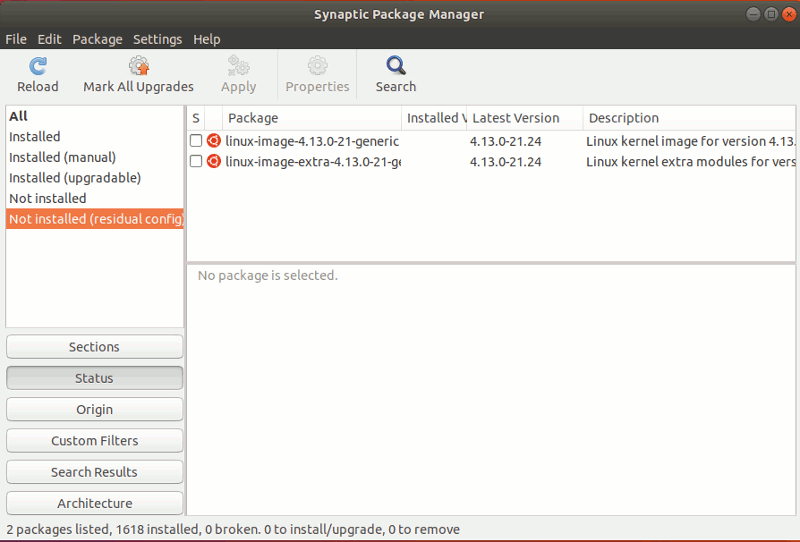
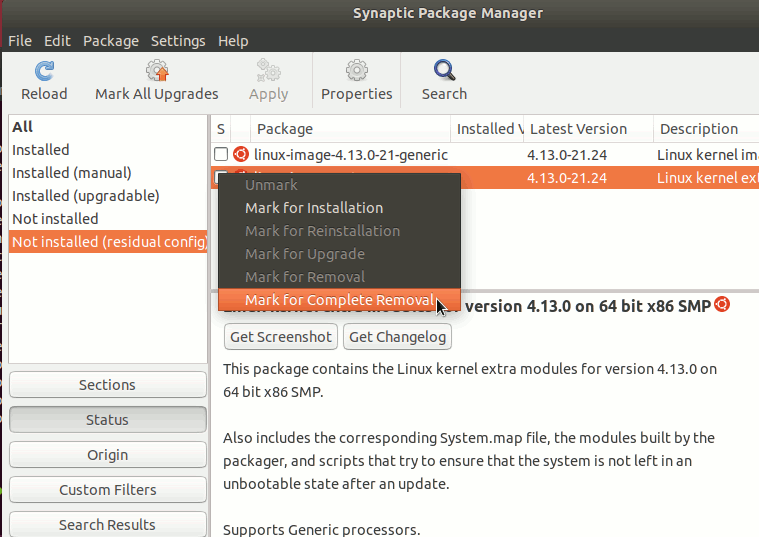
Check the box beside the package and select “Mark for complete removal.” Click Apply.
5. Remove orphaned package
Other than the dependent files, packages can also become orphaned when you uninstall an application. To get rid of orphan files, we can make use of “gtkorphan.” a graphical frontend for “deborphan.”
Install gtkorphan via the terminal:
sudo apt install gtkorphan
Open GtkOrphan from the Applications list.
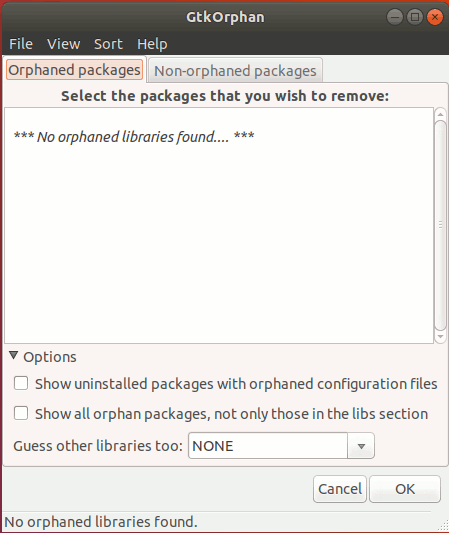
It will analyze the system and show all of the orphaned packages in the main window. Check those packages that you have no use for and uninstall them.
6. Keep track of what you have installed
Debfoster creates dependency files to enable you to keep track of what you have installed. When you uninstall an application, it will check for any dependent files left behind or orphaned packages and ask you if you want to remove them.
1. Install debfoster via the terminal:
sudo apt install debfoster
Creating the initial keeper file:
sudo debfoster -q
Force the system to conform to the keeper file
sudo debfoster -f
If you have some packages that you never want to uninstall and do not want debfoster to handle those packages, you can edit the keeper file (located at ” /var/lib/debfoster/keepers”) and remove those packages from the list.
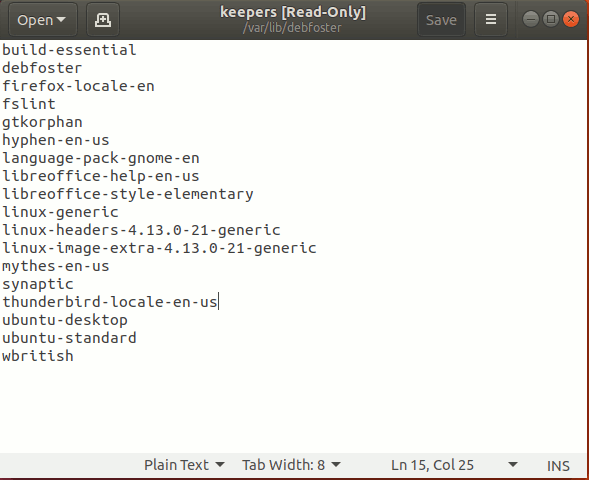
To see is there is any orphaned package or dependent files that need to be removed:
sudo debfoster
7. Remove locale files
Unless you have a need to switch to various locales all the time, you can uninstall the unused locales and free up some of the storage space in your system.
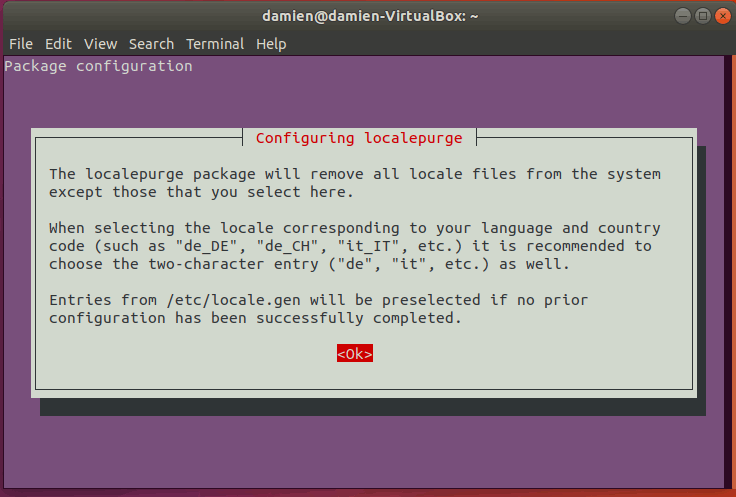
Install localepurge via the terminal:
sudo apt install localepurge
Once the installation is done, it will remove all locale files from your system that you have no need for.
8. Clean up grub menu
Sometimes when you perform an update, you will find that the kernel is being upgraded to a new one while the old one still remains. If you don’t like to see a long list of entries in your grub menu when you boot up the computer, here is a simple way to clean up the grub menu.
1. In Synaptic, search for “linux-headers” with the “Installed” status. Remove those that are not the latest version.
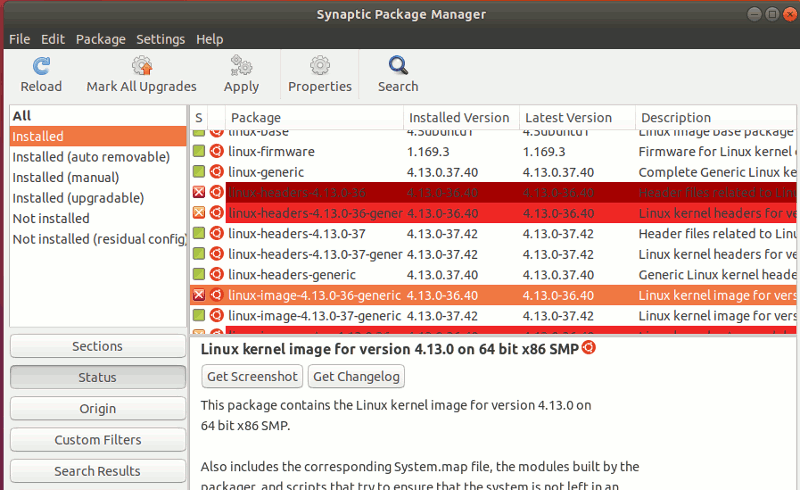
2. Once done, open the terminal and type the following command:
sudo update-grub
This will then clean up the grub menu.
Note: you can check out this Grub tutorial for more ways to customize Grub 2.
Conclusion
The above tricks should keep your Ubuntu machine clean and lean. Are there any ways that I have missed? How do you clean up your Ubuntu machine?
This article was first published in October 2008 and was updated in March 2018.