

Taking screenshots or even when sharing a webpage with some of your friends, can be time-consuming and can slow you down. First, you search your desktop to find the screenshot you’ve just taken, then you crop it, and finally, you search for a reliable image host.
The good thing is, these problems can be easily solved by an browser application. You can snap and annotate screen snapshots without ever leaving your browser by using the Chrome extensions discussed below. And with one of these tools, you can even take screenshots from your desktop and other applications.
1. Pixlr
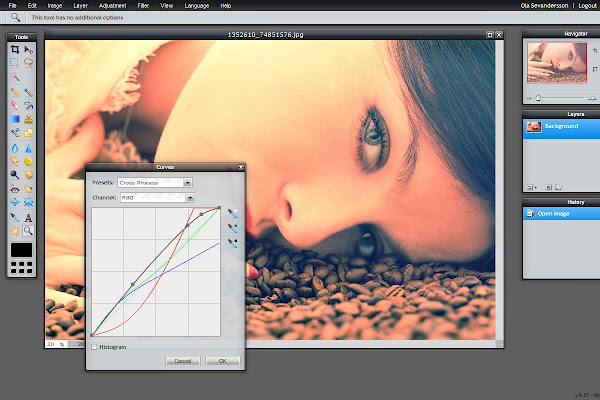
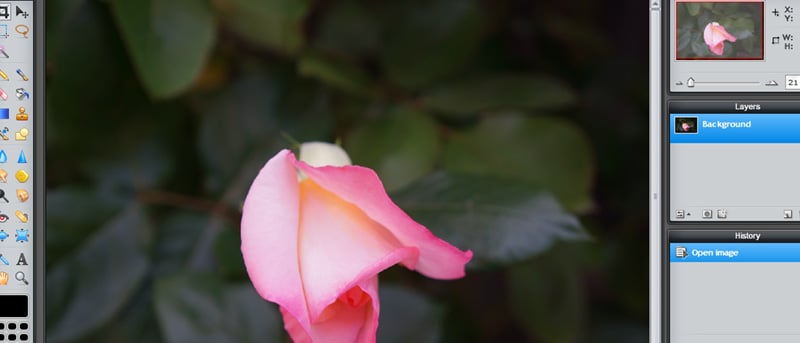
Pixlr Editor is a full-featured in-browser photo editing app that you can use to edit image files while they still reside in Google Drive. And if you have synced your Drive files across various computers, whatever editing you do on one will automatically appear on another system. Now, that’s one productivity increase I can get behind. One of the best Chrome extensions out there, we definitely recommend you give this one a try. Once installed, be sure to restart Chrome once to get the full features of the app.
2. Awesome Screenshot
Awesome Screenshot is just one of the best in-browser screen snapshots alternatives available today, and one that we’re quite fond of using here ourselves at Make Tech Easier. You can choose either to capture the entire webpage, or just the part that is currently visible in your browser. By resizing your browser window, you can actually dynamically crop your screenshots before they’re taken.
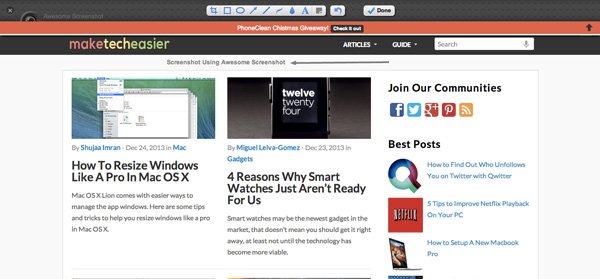
You can also use the extension for some basic editing once you’ve snapped your webpage – ideal for bloggers and amateur annotation. Furthermore, you can resize or further crop your screenshot, and improve the image quality or compress for web viewing. Annotations consist of basic circles, rectangles, lines, freeform and/or text on top of the screenshot. More importantly, the special blur tool allows you to quickly blur out parts of the screenshot, perfect for obscuring personal details.
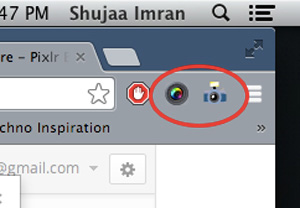
Awesome Screenshot also allows you to instantly upload the resulting screenshot, but if you plan to do so, you should know that Pict.com is known as a rather unstable image host, and images might not be kept online. For that purpose, we advise you to either store your images locally or make use of a trustworthy image host such as Photobucket. In short, this a lightweight screenshot and annotating tool, ideal for bloggers and amateur sharing.
3. LightShot (Windows only)
Lightshot could be considered a more heavyweight alternative to Awesome Screenshot. After clicking the icon in the top right corner of the browser bar, you can select any visible part of your screen to snap a picture, though unfortunately, it’s not possible to snap an entire webpage. LightShot also lets you to take screenshots of your desktop or any other application. The only downside: it’s only supported on Windows.
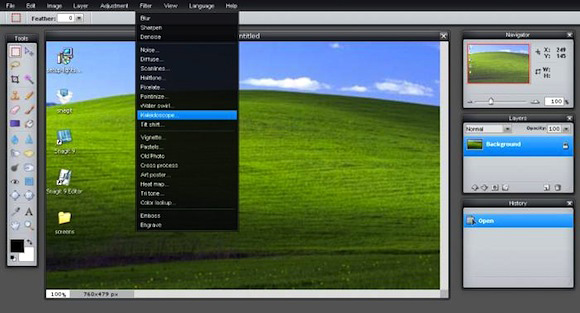
The extension also allows you to annotate screenshots, but is not limited to that aspect. The embedded image editor is far more advanced than the default image editor included in Windows, with support for layers and filters. When you’re done editing, you can either save the screenshot locally or upload it to the LightShot server.
For Windows, LightShot is by far the most advanced screenshot tool available as a Chrome extension. If you regularly need heavy editing while working with screenshot, LightShot will the the extension of choice.
4. Webpage Screenshot
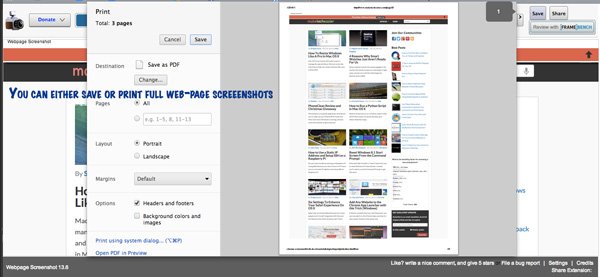
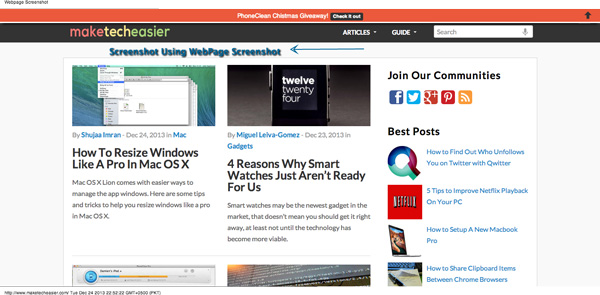
Webpage Screenshot was the original screenshot application for Google Chrome, and the first that allowed for full-page screenshots with automated scrolling. With that said, the extension is rather simply, and a far lighter alternative to Awesome Screenshot or LightShot. Clicking the toolbar button will snap the visible area, or take a full-page screenshot of the website, optionally by interval. Once taken, you will also have the ability to further crop the image, apply basic annotations and share it online.
Do you know of any other great Google Chrome screenshot tools? Let us know in the comments section below!