


Email scheduling is a useful tool for pre-writing emails you know you’ll want to send at a specific time. By scheduling emails, you can be sure the greatest number of recipients will open the email by only sending at peak times. It’s especially useful if you want to send emails to a large number of clients but want to space the messages out to avoid pummeling a server. Emails can be scheduled for an arbitrary time and date in the future. When you schedule emails in Gmail, they will sit in a special section of your outbox until they are ready to be sent.
Also read: How to Add Hyperlinks to Any Image in Gmail
This feature works inside the Gmail web app, but scheduled emails can be set with a number of email clients. Spark, for example, can schedule emails on any service because the app manages the sending time, holding back the email until its time to fire. Other clients may or may not interact with Gmail’s default email scheduling service exactly. Gmail’s web service relies completely on Google’s internal implementation of message sending, so your computer doesn’t need to be turned on or connected to the Internet at the scheduled time to send the message.
Schedule Emails in Gmail
Emails can be scheduled through the web mail interface at Gmail.com. This will only work for Google-administered email addresses like @gmail.com. It’s not currently available for G Suite customers, also known as Google Apps customers.
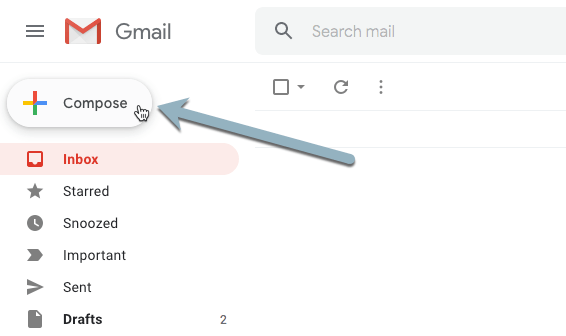
1. Once you’re logged into your Gmail account, click the “Compose” button to begin writing a new email.
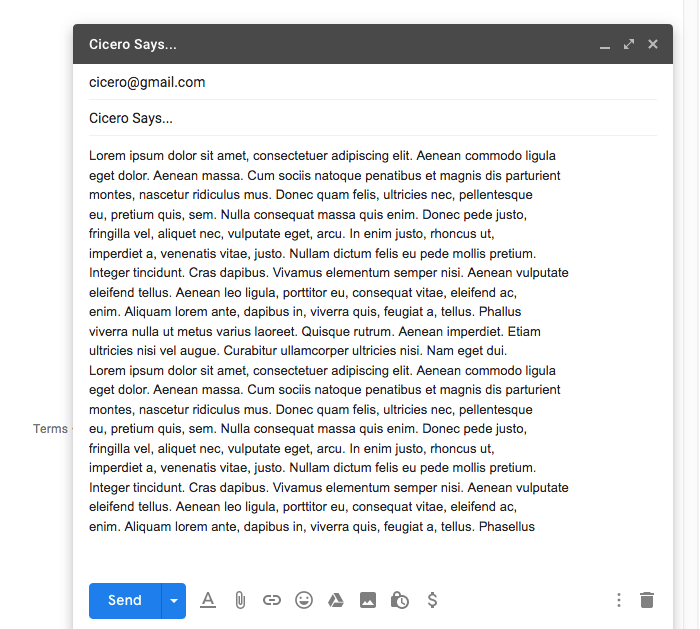
2. Compose your email with the subject, body, and recipients completed. Include any images, attachments, or other features. The email will be closed as soon as its scheduled, and while you can reopen the email and edit it, you’ll have better luck if you get everything properly arranged first.
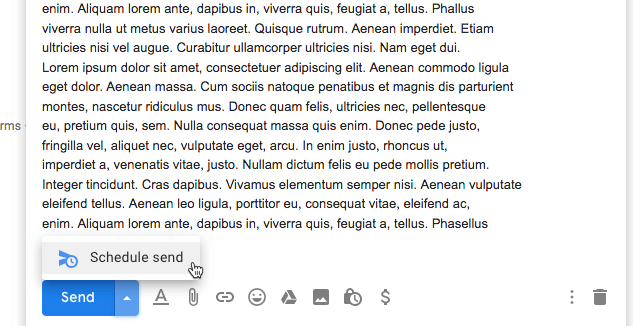
3. Next to the “Send” button click the drop-down arrow, and select “Scheduled Send.”
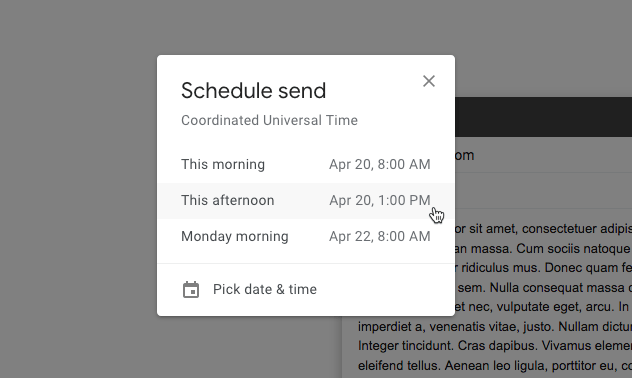
4. Select a time from the popup window, or use “Pick date & time” to set an exact time to send the email.
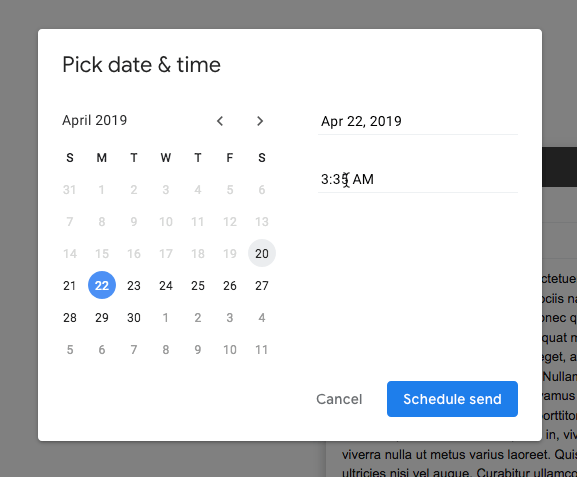
5. Once the time is set, the email will be stored until sent. The confirmation notification at the bottom of the window will allow you to view the email and cancel the scheduled send.

Also read: How to Personalize the New Gmail App
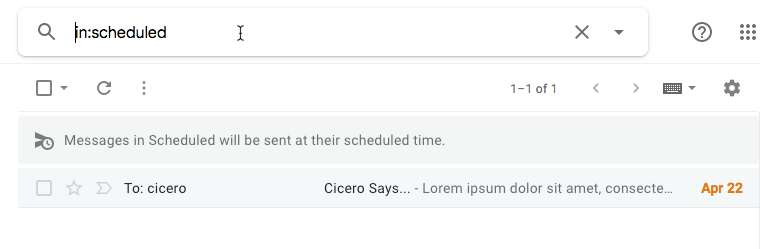
You can also view the email by typing “in:scheduled” in the Gmail search bar.
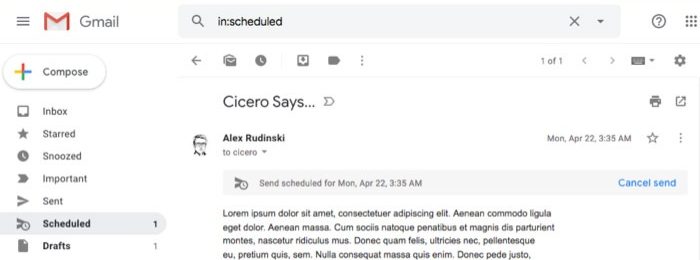
If you want to cancel the email, navigate to the scheduled message, then click the “Cancel Send” link near the top of the message. This will return the email to drafts and remove it from the scheduled list.
Conclusion
Gmail’s new scheduled email feature can send emails at a specific date and time. It relies on a built-in functionality in Gmail.com and does not require you to be connected to the Internet or logged into your computer when the email is sent.